
Video tutorials
See 2Timer workflows in motion.
Walkthroughs for real meet-management tasks: importing data, connecting timing systems, combining races, scoring, reporting, and moving cleanly through race day.
Latest tutorial
How to Capture Race Start Times in 2Timer
Accurately capturing the gun time is an important part of timing a race. In 2Timer, you have four ways to record the start: manually with a button or keyboard, sync with a running watch, enter an exact timestamp, or let your computer’s microphone listen for the starting gun. Once you’ve captured the start time, you can use it with 2Timer’s Stopwatch feature to start a running clock from the official gun time. This gives you a flexible way to capture finish times and build accurate race results—even when you’re timing without dedicated hardware.
Playlist
More tutorials

How to Apply & Reorder Bib Numbers in 2Timer, Fix Finish Order Fast
Learn how to use Apply Bib Numbers in 2Timer to quickly correct and reorder finishers after a race. You can manually enter or paste bib numbers, import them from a CSV, swap individual finishers, or make large-scale changes to an entire section of results. Once your bib order is corrected, 2Timer applies the bibs back to the race and overlays them with the finish times captured using the Stopwatch feature. This makes it easy to fix mistakes without having to retime the race.

Timing races with the built-in stopwatch
See how to use 2Timer’s new Stopwatch feature to capture finish times for multiple races, apply those times to races, and match bib numbers separately. We’ll also show how to edit and reapply times if you miss a finish or capture an extra time by mistake.

Customize Reports in 2Timer: Templates, Favorites & Saved Report Setups
2Timer includes a large collection of built-in reports for results, start lists, team scoring, awards, performance lists, MVP reports, and more. In this tutorial, I walk through how to find the report you need using search, filtering, and favorites, so the reports you use most often are always easy to access. We’ll also look at how to customize reports for the way you actually want to present your data. That includes filtering by event, division, team, result status, and other options, as well as changing how results are grouped, which columns are shown, whether team scores are included, and how details like wind readings or relay legs appear. Once a report is configured exactly the way you want it, 2Timer lets you save it as a custom template with your own name and description. That makes it easy to reuse the same report setup later without having to rebuild it every time. I also cover report favorites, which let you star commonly used reports and move them to the top of your list. This is especially helpful when you have a lot of available report templates but only a handful that you use constantly during a meet.

How to Set Up Mobile-Friendly Live Results in 2Timer
In this tutorial, I walk through how to set up a Live Results connector in 2Timer to publish mobile-friendly meet results, heat sheets, and team scores for coaches, athletes, parents, and spectators. We’ll look at how to configure live results to publish to a local directory, Amazon S3, Cloudflare R2, or an FTP server. Once the connector is set up, 2Timer can generate a live results site that is easy to navigate on a phone and includes results, heat sheets, and team scores. I’ll also explain the different publishing modes available in 2Timer. You can publish automatically whenever results change, publish on a set interval, or use manual mode when you only want updates pushed at specific times. The live results site is designed to automatically refresh at regular intervals, so viewers can continue to see updated results without constantly reloading the page. This makes it a great way to keep everyone informed during a meet while keeping the workflow simple for timers. Whether you’re running track & field, cross country, or road racing events, the Live Results connector gives you a flexible way to publish results from 2Timer and make meet information available in real time.
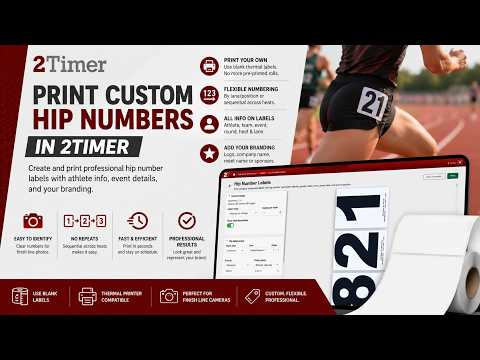
Custom Hip Numbers for Track Meets with 2Timer
Hip numbers are the easiest way to identify athletes in finish-line camera images. In this video, I walk through how to configure and print custom hip number labels directly from 2Timer using a thermal printer and blank hip label stock. We’ll cover different numbering strategies, including assigning hip numbers by lane or position (default) and using sequential numbering across heats to avoid repeated numbers within an event. Many timers prefer sequential numbering because it makes it much easier to identify the current heat directly from finish line photos. You’ll also see how 2Timer automatically prints important athlete assignment details directly on each label, including athlete name, team, event, round, heat, lane, or position assignment. Beyond the basics, 2Timer also supports custom branding on your labels. You can include your timing company logo, company name, meet name, sponsor information, or other custom text directly on the printed labels to create a more professional presentation. This workflow gives timers a flexible alternative to buying generic pre-printed hip-number rolls. It makes it easy to generate clean, customized labels on demand, right from your meet setup.

How to Set Up Sessions in 2Timer (Fixed/Rolling Schedules & Estimated Start Times)
Sessions in 2Timer make it easy to organize and schedule your track & field meet. In this video, I walk through how to configure sessions to segment your meet into logical blocks of events, such as morning prelims and afternoon finals. Sessions give you complete flexibility in how your meet is organized and scheduled. We’ll cover both fixed-time and rolling schedules, as well as assigning start or estimated times for individual events. One of the most powerful features in 2Timer is the ability to automatically generate estimated event times using actual seed times, heat counts, and custom timing buffers. You’ll see how to configure buffers between heats, between events, and even extra setup time for hurdle crews. This allows 2Timer to generate a realistic projected schedule that helps coaches, athletes, parents, and spectators better understand when events are expected to run. We also cover how session schedules integrate with FinishLynx. Once your Lynx connector is configured, the order of operations and scheduling updates can automatically stay synchronized between systems. Whether you’re running a small invitational or a large championship meet, sessions in 2Timer help create better schedules, clearer communication, and smoother meet management.

Test 2Timer Safely During Real Meets (Pull-Only FinishLynx Mode)
One of the biggest concerns timers have when testing new software is making sure it doesn’t interfere with their primary meet management workflow. In this video, I’ll show you how to safely use 2Timer alongside your existing FinishLynx setup while staying completely non-intrusive. We start by importing a FinishLynx EVT file into 2Timer. This automatically brings in your meet structure, including athletes, teams, divisions, events, heats, lanes, and entries so you can get up and running quickly without rebuilding the meet manually. From there, we configure the FinishLynx connector in “pull-only” mode. In this configuration, 2Timer watches the Lynx results folder for new results and imports them automatically, but it never writes anything back to the folder. That means 2Timer acts strictly as an observer and cannot interfere with FinishLynx or your primary meet manager. This setup is perfect for timers who want to get comfortable with 2Timer during live meets while still relying on their existing workflow. It’s a safe way to get real-world reps, explore the platform, and build confidence while we continue improving the system during beta. Whether you’re timing track meets today or evaluating future backup workflows, this tutorial will help you understand how to integrate 2Timer safely and effectively into your current setup.
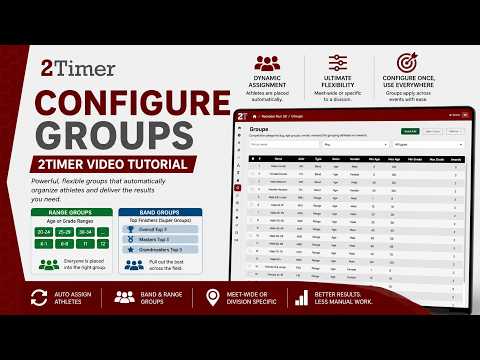
How to Configure Groups in 2Timer (Age Groups, Grade Range, Overall Bands, Masters, etc.)
Groups in 2Timer are among the most powerful ways to organize athletes, calculate awards, and automatically customize results. In this video, I walk through how groups work in 2Timer, including the two primary kinds of groups: Ranges and Bands. Range groups are used for things like traditional age groups (20–24, 25–29, 30–34, etc.) or scholastic grade ranges (K–1, 6–8, 11, 12, and more). These allow athletes to be dynamically grouped by age or grade without requiring any manual assignment. Band groups are “super groups” that pull top finishers out of the field for awards and recognition. These are commonly used for categories like Overall Top 3, Masters, and Grandmasters. You’ll see how to configure how many athletes get pulled into each band and how those groups can coexist alongside standard range groups. One of the biggest advantages of groups in 2Timer is that athlete assignment is completely automatic. Based on your configuration, 2Timer dynamically determines which groups each athlete belongs to and applies them throughout results and awards. I also cover how groups can be configured as meet-wide groups that apply across all events, or constrained to specific divisions when you need more flexibility. This makes the system incredibly adaptable for road races, cross-country meets, and track & field events of all sizes. Whether you’re setting up simple age groups or building a complex awards structure, this tutorial will help you understand how to get the most out of groups in 2Timer.
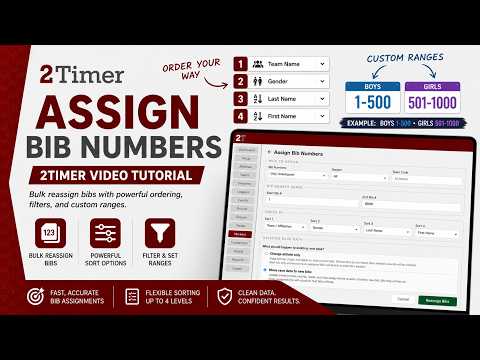
Bulk Assign Bib Numbers in 2Timer (Custom Sorting & Ranges)
Assigning bib numbers doesn’t have to be slow or manual. In this video, I walk through how to use 2Timer’s bulk bib reassignment tools to quickly and accurately assign bibs across your entire meet. We’ll cover both individual reassignment and the real power of bulk assignment. You’ll see how to order athletes using up to four levels of sorting, including team or affiliation, gender, last name, and first name. This makes it easy to create clean, logical bib sequences that match how your meet is organized.

How to Use Waves in 2Timer (Normalize Times & Split Results)
If you're running races with staggered starts, Waves in 2Timer are essential—but they’re more powerful than most people realize. In this video, I walk through how to use waves to: - Handle staggered starts (Wave 1, Wave 2, etc.) - Normalize times so later waves are scored fairly - Organize athletes into logical groups - Split results by wave instead of combining everyone into one set Waves aren’t just about start delays—they’re a flexible way to group athletes and control how results are calculated and displayed. Whether you're timing cross-country, road races, or large meets, this feature gives you cleaner results and greater control.

Generating test athletes, teams, and results in 2Timer
Sometimes you need some random data to play around with. This tutorial shows the macros in 2Timer that can be used to create funny team and athlete names, random entries, and fake results.

How to Score a Cross Country Tri-Meet as a Double Dual in 2Timer
Running a cross country tri-meet? In this video, I’ll show you how to use 2Timer to score it as a double-dual meet—without running separate races. We’ll use Leagues to split a single race into three head-to-head matchups: Team A vs Team B Team A vs Team C Team B vs Team C From there, you’ll learn how to: Automatically score all three dual meets from one race Keep everything clean and organized inside 2Timer Export results either as a combined race or as separate dual meet results This is a huge time-saver for meet directors and timers who want accurate scoring without extra complexity.

Timing races with Feibot timing system
Let's walk through setting up a connector to the Feibot timing system. We'll load in our chips and set up markers. I'll walk you through creating the corrector and the read routing rules so the reads will flow into the correct place. Then we'll watch the time flow in live!

Combine XC Races into a Super Event
It is easy to combine two cross-country races into one event with 2Timer. We use a feature called super-event so that we can officiate it as a single race, while entries flow seamlessly back to their underlying sub-events.