
The Meet Dashboard
The dashboard is the first page of every meet, labelled Dashboard in the sidebar. At a glance it shows whether anything is wrong, where the meet is, and what to do next. It is the same page at both experience levels. Basic shows less of it but never a different page, so everything below holds at Standard and Basic unless it says Standard.
The five parts of the dashboard, top to bottom
The parts never move, whatever the level, the sport, or how far along the meet is.
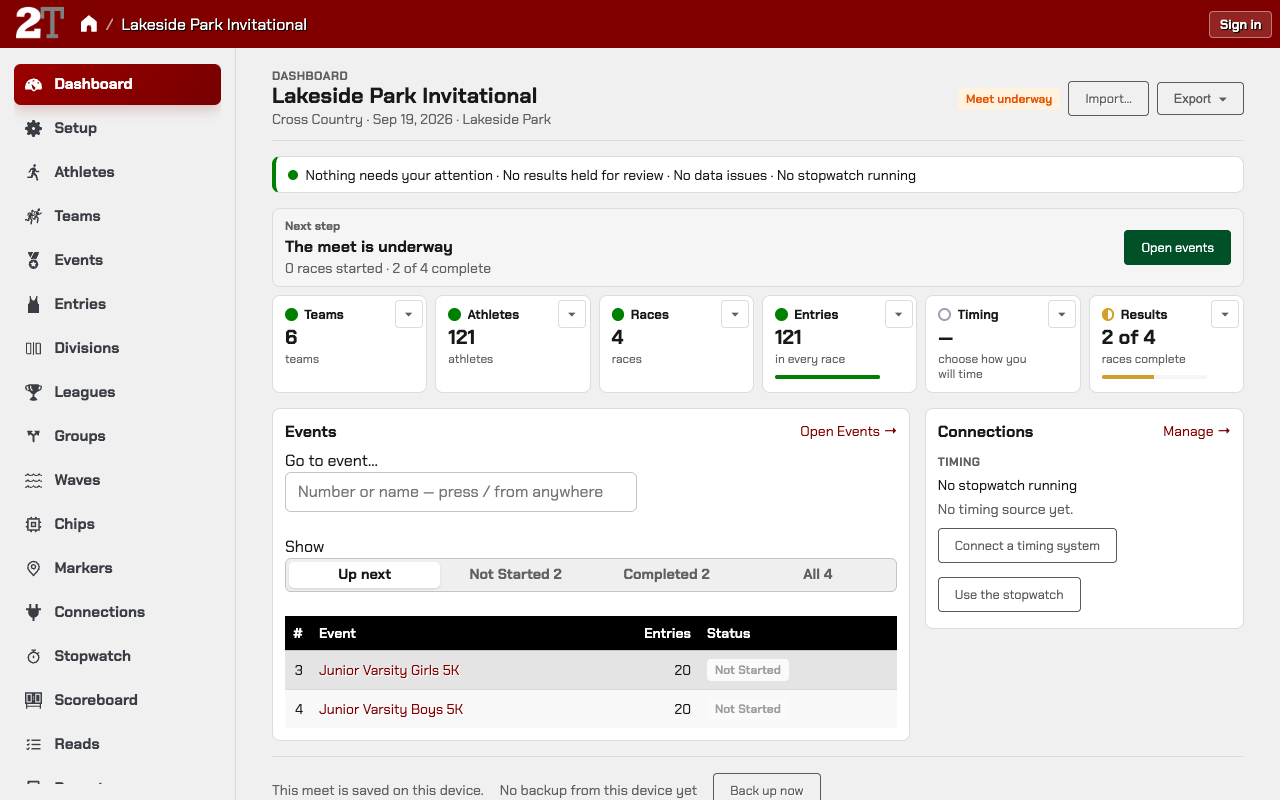
- Meet bar: the meet’s name, sport, date, and venue, and how far along it is: Setting up, Meet underway, or Wrapping up. Import… and Export sit on the right.
- Attention: everything that needs you, and nothing else.
- Next step and stages: what to do next, and a row of steps in the order a meet is built and run.
- Events and Connections: a short window onto your events, and whether data is flowing.
- Meet file: Back up now, your last backup from this device, and the actions that remove data.
The meet bar’s Export menu offers Results web page, Results spreadsheet, and Backup (.2t) at every level. At Standard it also has TFRRS results, other spreadsheets (CSV), the FinishLynx PPL, SCH, and EVT files, and Hy-Tek.
Attention
The Attention band near the top of the meet page holds every problem that puts results at risk or needs recovering. Each row says what happened in one plain line and has one button to fix it. Rows that put results at risk now have a maroon edge, and the rest are amber.
| Row | Edge | Button |
|---|---|---|
| This meet file needs repair. | Maroon | Download a backup |
| Connection name has stopped working. | Maroon | Open connection |
| N results are held for review. | Amber | Review results |
| N data issues need your review. | Amber | Review data issues |
| A stopwatch is still running for race, which is complete. | Amber | Open stopwatch |
- Stopped working appears for any connection in error, whatever its kind: timing, registration, results, or scoreboard, sending or receiving. The row says when data last arrived.
- Results held for review opens Reads, filtered to the held reads.
- Data issues opens Data Issues. They include duplicate bibs, entries not linked to an athlete, bib conflicts, and team codes that match no team. Athletes without a bib don’t count here: on a road race they show on the Bibs stage instead, and a hip-number track meet never needs them.
- A running stopwatch isn’t a problem while its race is on. It becomes a row only once every athlete in that race has a result or a status, because then there is nothing left to time.
Nothing needs your attention: the green line
When nothing is wrong, the Attention band is one green line that says what it checked, for example Nothing needs your attention · FinishLynx is live · No results held for review · No data issues · No stopwatch running. A stopwatch in use for a race that is still on is named: “1 stopwatch running, for JV Boys 5K”.
The dot is green only when every check ran and the page is up to date. If the data issues check couldn’t run, the line says “Data issues could not be checked” and turns grey.
“Showing the meet as of …” and Refresh
The dashboard refreshes itself every 30 seconds while it is open, and when you come back to the tab. If a refresh fails, or the page hasn’t refreshed for more than a minute, the top of the Attention band says Showing the meet as of 10:41. with a Refresh button. The green line turns grey, because the page can’t vouch for it. Press Refresh, or wait: once refreshing works again, the line goes away by itself. While refreshes work, the page says nothing about them.
Next step: what the dashboard tells you to do next
While the meet is Setting up, the Next step is the first stage that isn’t done, with a main button and usually a second choice. For example:
- Add your athletes: Import a spreadsheet or Add athletes by hand. While the meet has no athletes it also offers the spreadsheet template (“Need the format? Get the template”).
- Set up your events (or races): Open events.
- Enter athletes in their events: Open entries or Import a spreadsheet.
- Give every athlete a bib (road races): Assign bibs or Open athletes.
- Seed your events (track and field): Open seeding.
- Choose how you will time: Use the stopwatch or Connect a timing system.
- Record results: Open entries.
At Basic the next step is the page’s headline. At Standard it is one compact line.
When the meet chose a system that still needs connecting, the step carries a Finish connecting line for it, such as “Finish connecting MyLaps”, which opens its form. When Timing is the next stage, finishing that connection is the step itself. On the first meet where 2Timer set something up from your usual systems, a one-time note says so and points to Settings → Systems.
Next step once the meet is underway
Once a race has started, the next step talks about the meet instead:
- With sessions: Next up: #15 Boys 200m Prelims, how many rounds have started, and Open event.
- Without sessions: The meet is underway, how many rounds have started and how many are complete, and Open events.
- When nothing is left to start, it names a race with entries that still have no result, for example 10K: 17 entries without a result, with Open on Entries, and how many more races are in the same state. When the race is over, mark the missing runners DNF or DNS there.
The dashboard never decides a race is over for you. A race is complete only when every entry has a result or a status, and until then the meet stays Meet underway. Once every round or race is complete, the meet is Wrapping up and the next step offers Results web page and Results spreadsheet.
Stages: the row of steps for each sport
| Sport | Stages |
|---|---|
| Track & field | Athletes · Events · Entries · Seeding · Timing · Results |
| Cross country | Teams · Athletes · Races · Entries · Timing · Results |
| Road race | Athletes · Bibs · Races · Timing · Results |
Each stage shows an empty ring (not started), a half-filled amber circle (in progress), or a green dot (done), with one figure and a line of detail. Not started is never shown as a fault. Click a stage to open its page: Results opens Entries, Bibs opens Assign Bibs.
- Seeding appears on a track meet as soon as any event has entries, because every track race needs heats and lanes or positions before it runs.
- Timing is done once the meet has a timing connection or a stopwatch session, or you answered Hand timing when you created it. A meet timed by hand shows Hand timing as the figure. A results destination or a registration platform doesn’t count, and neither does a timing system still waiting under Finish connecting.
Stage details: the ▾ button (Standard)
At Standard each stage has a small ▾ button that opens a row beneath the stages (on a phone, beneath that stage) with the figures filed under it, and an Open button for the stage’s page:
- Athletes: teams, leagues, and groups.
- Events (track and field): divisions, sessions, and rounds.
- Teams (cross country): leagues.
- Races: waves (road races), markers, and divisions.
- Seeding: rounds seeded, and entries without a lane.
- Timing: connections and stopwatch sessions.
- Bibs: athletes without a bib.
- Results: completed, started, not started, and results recorded.
A figure with a page of its own, such as Teams or Leagues, opens that page. Completed or Started under Results switches the Events list below to those races. The open row is remembered on this device.
Events on the dashboard
The Events list shows your rounds in schedule order: sessions first, then event number, with the same status words as the Events page. It shows at most 12 rows (6 at Basic), says how many it is showing, and links to Open Events →. It opens on what matters now: while you set up, events with no entries, then unseeded ones (on track) or ones not started; Up next once the meet is underway; Completed at the end.
At Standard it also has:
- Show tabs with counts for each status (a dropdown on a phone);
- a Round column on track meets, and a Scheduled column when sessions give planned times;
- Go to event…: type an event number or name and press Enter. Press / anywhere on the dashboard to jump to it.
Connections on the dashboard: is data flowing?
The Connections column groups the meet’s connections under the same four headings as the Connections page, in the same order. Timing is always there. Registration, Results, and Scoreboard appear when the meet has a connection of that kind, or a system of that kind waiting to be finished. Manage → opens the Connections page.
- Each connection shows Live, Paused, Error, or Idle, how long since it last had data, and Start or Stop.
- A connection set up with the meet says Set up automatically, which links to Settings → Systems.
- A system waiting to be connected is one row: Finish connecting and its name, what is missing, and Not using it for this meet.
- The stopwatch line is always under Timing: “No stopwatch running”, or how many are running.
- A meet with no timing yet says “No timing source yet.” (or “Timed by hand.”) with Use the stopwatch and Connect a timing system.
- At Standard, once reads exist, a bar shows how many reads were used, held, rejected, or other, and By status opens the breakdown.
Show one session on the dashboard (Standard, track and field)
On a track meet with sessions, Showing in the meet bar picks Entire meet or one session. A session narrows the Entries, Seeding, and Results stages, the next step, and the Events list, and those stages carry the session’s name. Attention, the other stages, how far along the meet is, and Connections always describe the whole meet, so a problem never hides behind the choice. The choice is remembered on this device. On a phone the selector sits in the Events header.
Back up the meet: Back up now at the bottom of the dashboard
The backup button is at the bottom of the meet’s dashboard (the meet’s first page). It says “This meet is saved on this device.”, then your last backup, then Back up now.
- Back up now opens Export to .2t. Press Download .2t File there.
- After that download, the line reads Last backup downloaded: today 9:12 AM. Until then it reads No backup from this device yet. It only says the file was downloaded, so keep it somewhere safe.
- The time is remembered on this device, not in the meet, so the same meet on another device says “No backup from this device yet”. A backup saved from the ⋮ menu on the Meets screen doesn’t update this line.
Remove data… opens the actions that delete data from this meet and can’t be undone: Purge results… and Purge meet data… (the page titled Purge database). Back up first, and see Purging Results and Resetting State for the narrowest tool for the job.
The dashboard on a phone
The same parts stack in one column, with Connections above Events. Each stage becomes one row, and the Events list keeps number, event, entries, and status.
Dashboard checklist
- The Attention band is one green line, or every row in it has an action you understand.
- The next step matches what you are about to do.
- After Back up now and Download .2t File, the bottom of the page shows today’s time.
Related Pages
- Getting Started
- Importing Data
- Timing Workflow
- Hand Timing with the Stopwatch
- Purging Results and Resetting State
Metadata
- Last Updated: 2026-10-13
- Product Release: V1
- Status: Active